













AI Tools
Live Transcription App Comparison: 10 Options for 2026
Compare the top live transcription app options for interview practice, from Otter.ai and Notta to Zoom and Teams captions, with free plans and limits.
Interview Pilot Editorial Team
Updated November 16, 2026
19 min read
You've joined an interview with headphones on, opened a transcription app on your phone, and waited for the interviewer's question to appear. Your answers show up clearly. The interviewer's don't, because their voice is going into your headphones, not the phone's microphone.
Where your interview audio goes matters more than the app's feature list. A live transcription app is useful only if it hears the right speech. Meeting integrations, browser extensions, built-in captions, and phone microphones capture conversations differently, and those differences become obvious at the worst possible moment if you haven't tested them.
There's another distinction: text you can read during a call isn't necessarily a transcript you can review afterward. Captions can help you follow a technical question, but preparation requires something you can revisit, search, and compare with your answer.
Choose the audio route first, then decide whether you need live captions, a saved transcript, or both.
The options below cover online meetings, browser-based interviews, and conversations happening around your phone. The order groups related workflows rather than declaring a universal winner. For a real interview, confirm that transcription is permitted before adding a recorder or meeting assistant. For practice, test with the same laptop, headset, browser, and meeting platform you'll use, including a question spoken by someone at the other end of the call.
1. Otter.ai
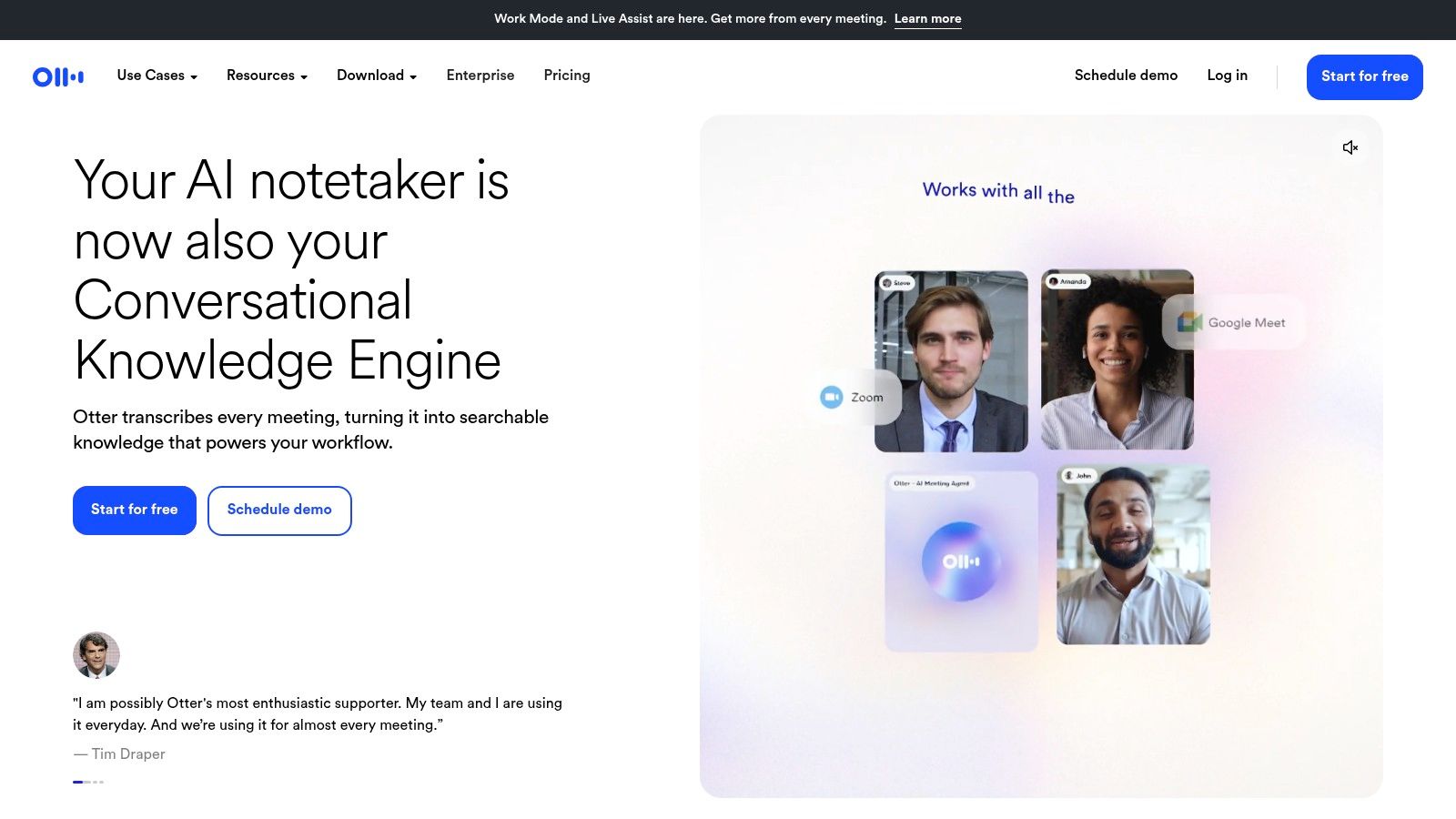
Best fit for moving between online mock interviews and in-person practice. Otter.ai combines live transcription with a searchable conversation history, speaker identification, highlights, and comments. Its meeting integrations support Zoom, Microsoft Teams, and Google Meet, while its mobile apps can capture conversations in the room.
That combination makes sense when you're preparing with different people on different platforms. You can revisit the question, inspect your answer, and keep a note about what to change rather than relying on a meeting summary alone.
Capture the conversation, then review the answer
For a behavioral mock interview, highlight where you described your own contribution versus the team's work. For a technical discussion, search the transcript for terminology you struggled to explain and turn those passages into practice prompts.
- What works: Live capture and review tools sit in the same workflow, which helps when you're building a reusable preparation record.
- What needs checking: Plan allowances restrict transcription, imports, and meeting duration. Test a realistic session rather than assuming a short successful recording proves everything.
- What it isn't: Otter isn't an independent private caption overlay that automatically works in every interview. Meeting integrations and host settings can affect capture.
I'd shortlist Otter for repeated mock interviews where everyone agrees to transcription. For a broader preparation workflow, use this guide to interview transcription with AI to separate capturing words from evaluating the substance of an answer.
2. Notta
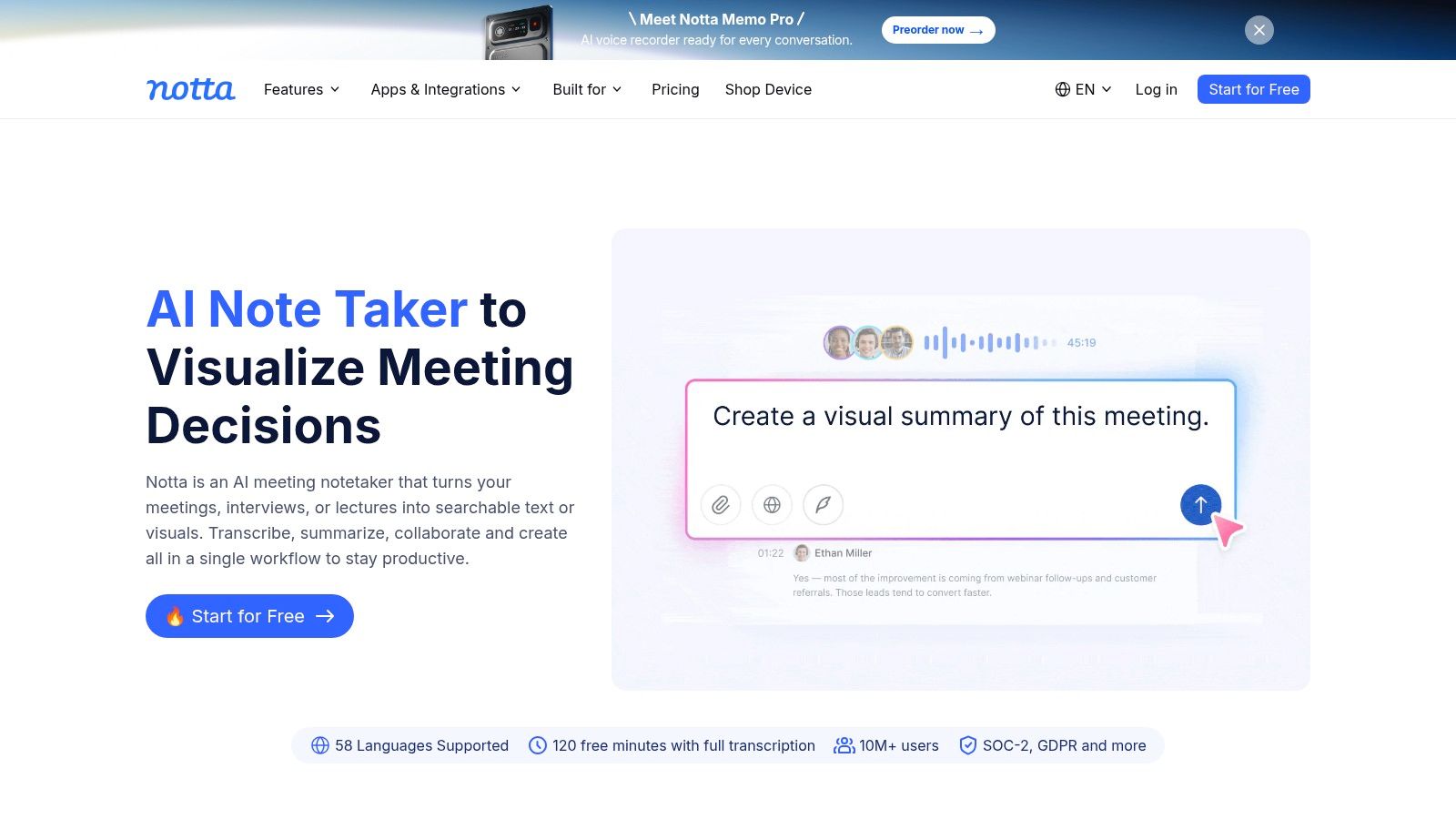
A candidate rehearsing on a phone and interviewing on a laptop needs more than a mobile recorder. Notta offers web, mobile, desktop, and browser-extension options, alongside supported meeting capture and uploaded-recording transcription.
Its appeal is flexibility across capture routes. Meeting support includes Zoom, Google Meet, Microsoft Teams, and Webex, and transcript syncing makes it useful when you want to review practice material on a different device.
Test the language and the capture route separately
Language availability doesn't establish whether an app will recognize your accent, company names, or specialist vocabulary reliably. The Multilingual and Multi-Accent Speech Recognition Evaluation benchmark evaluated speech across 149 languages and 93 language varieties and found that even the best-performing system had materially different error rates across accents and dialects.
That finding isn't a Notta performance score. It's a reason to test your actual interview language rather than choosing any transcription app from its language menu alone.
- Useful scenario: Practice an English-language finance interview, then revisit the transcript on your phone to inspect valuation terms and qualifications.
- Main limitation: Free conversations have a short duration cap, and transcription allowances vary by plan.
- Purchase consideration: Translation may require a paid add-on, and app-store pricing can differ from web pricing.
I'd choose Notta when device flexibility matters, but only after confirming that the intended setup captures both participants and saves enough of the conversation to support meaningful review.
3. Fireflies.ai
Fireflies.ai makes the most sense when interview practice resembles a recurring meeting workflow. It captures supported meetings and provides transcripts, notes, summaries, search, playback, and editing tools.
Say you rehearse consulting cases with a practice partner each week. A searchable session history lets you revisit how you clarified the problem, structured your answer, and responded when challenged, without treating each recording as an isolated file.
The trade-off is meeting visibility. An auto-joining assistant may be perfectly acceptable during an agreed mock interview but unsuitable for an employer's interview process.
Practical rule: Don't let an assistant's automatic calendar behavior decide which interviews get recorded. Review joining settings before connecting an interview calendar.
Better for an organized practice archive
Fireflies supports major meeting services, with mobile and desktop apps and a Chrome extension adding workflow options. Those options don't mean every route provides identical live text, recording access, or review behavior, so test the specific one you plan to use.
- Strength: Searchable transcripts and playback support detailed review across recurring practice sessions.
- Constraint: Free-plan storage and AI-credit conditions need checking before you build an archive around them.
- Interview fit: Use it for consensual mock interviews and approved meeting capture, not as an assumed background accessory.
When reviewing, start with the original question and answer before reading the generated summary. A concise summary may preserve your conclusion while leaving out the hesitation, missing assumption, or unclear explanation you need to fix.
4. Tactiq
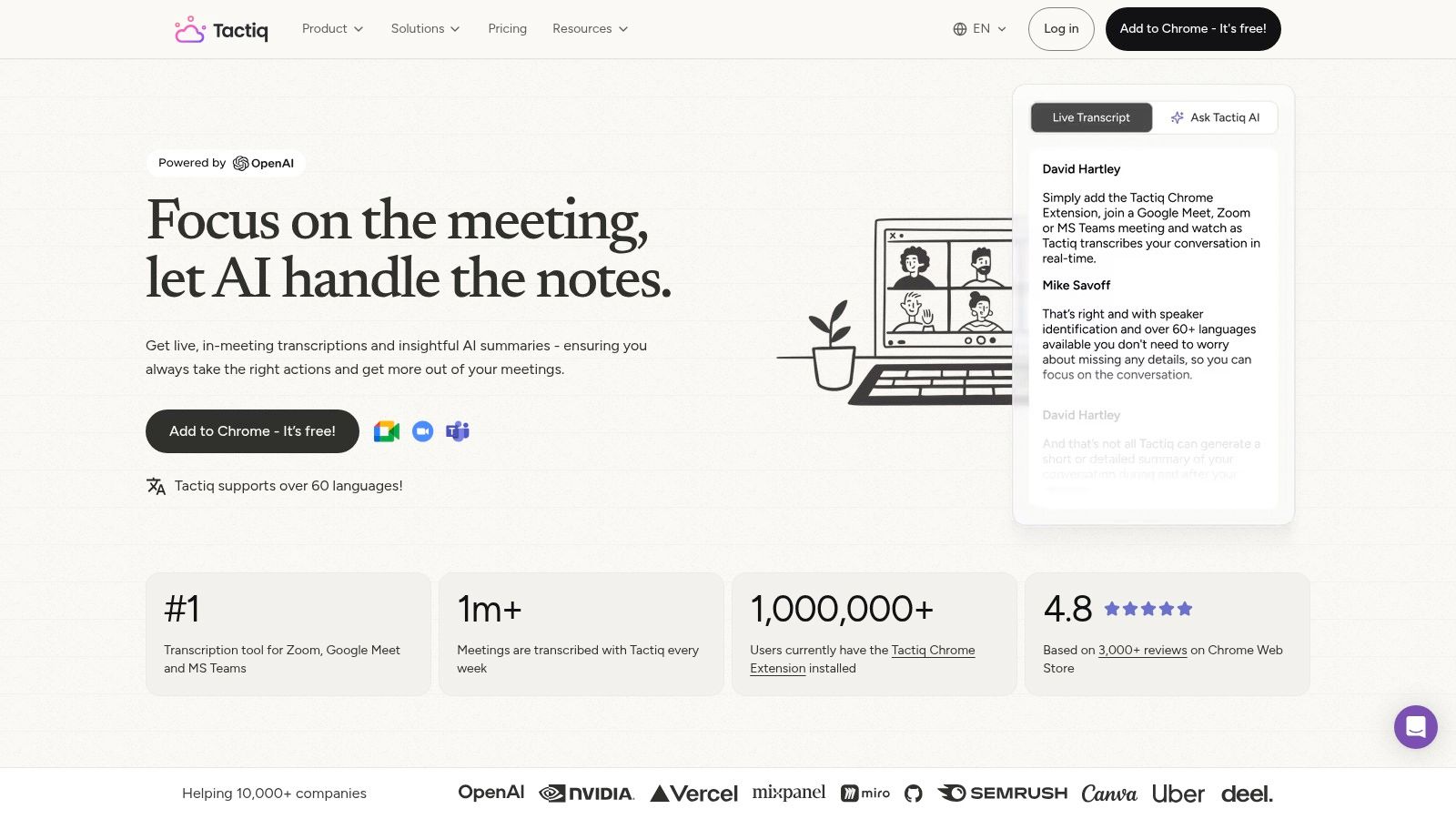
For a Google Meet interview in a desktop browser, start by considering the browser workflow. Tactiq captures live meeting transcripts through an extension and saves them in its web app for later review. It emphasizes lightweight transcription rather than adding a meeting bot.
That distinction matters if you want readable discussion text and an afterward record without managing another participant in the call. It doesn't remove your responsibility to disclose transcription or follow the interviewer's rules.
A browser extension, not universal computer captions
Tactiq's Google Meet capture depends on a compatible desktop browser and extension. Don't assume it will follow you into a native meeting app, capture an unrelated audio source, or work the same way on your phone.
Its transcript sharing, exporting, and AI-generated insights can help turn a practice conversation into study material. The useful test is whether you can locate the exact question and surrounding answer after the meeting, not merely whether an attractive summary appears.
- Good match: Browser-based mock interviews where you want a saved transcript without a joining bot.
- Poor match: In-person practice or a requirement to caption arbitrary audio across your computer.
- Plan consideration: The free plan suits light testing, but transcript allowances can become restrictive with regular practice.
For a software interview, rehearse a discussion involving API names and database terminology. Then check whether those terms survived export correctly, because a transcript that reads smoothly can still misrepresent the details you need to study.
5. Fathom
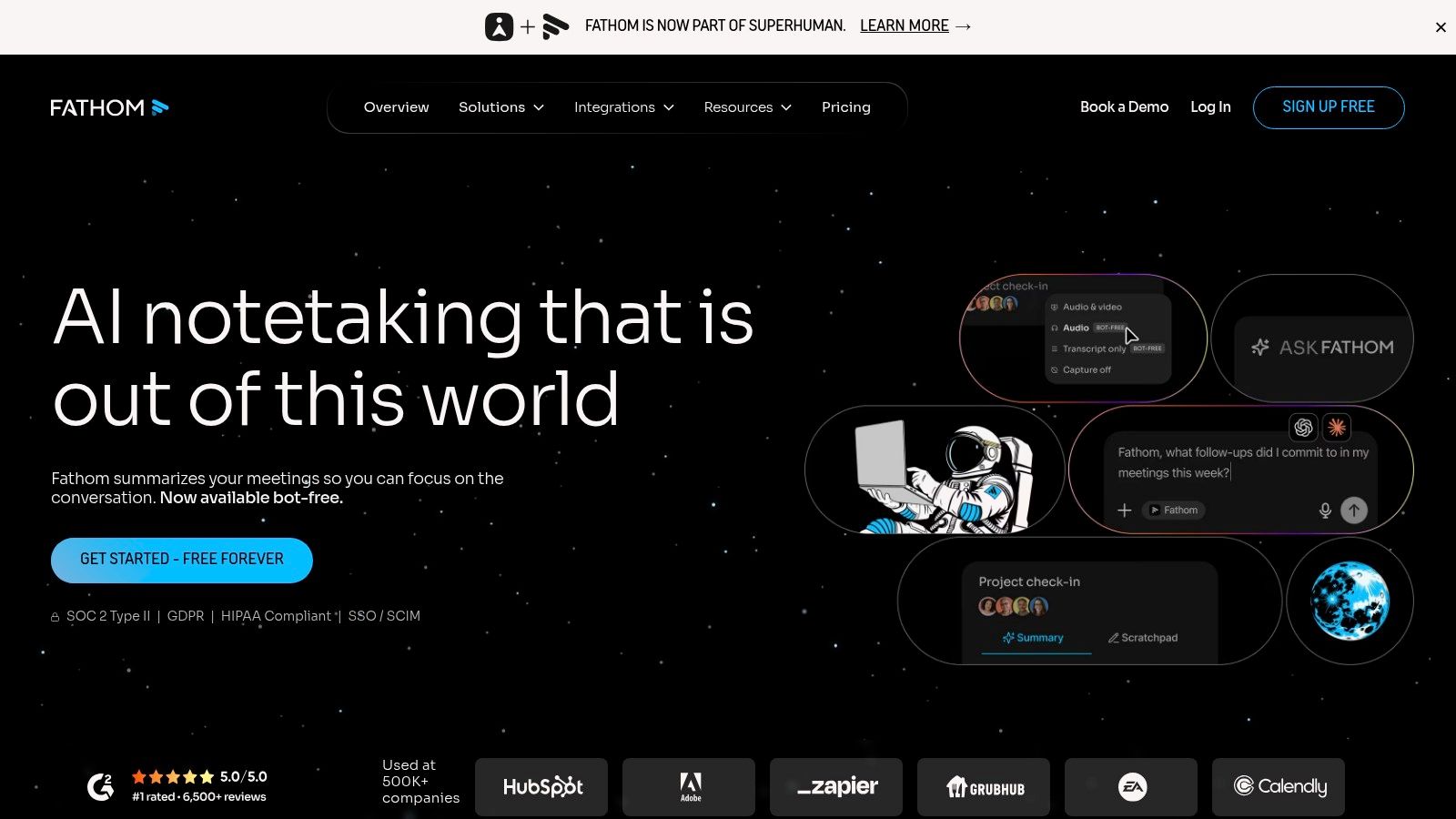
A live summary isn't the same as a live transcript. That distinction is especially important with Fathom, whose newer desktop experience offers a live-updating summary, while its older bot-based workflow produces transcripts and summaries after the call.
Fathom supports Zoom, Google Meet, and Microsoft Teams and is well suited to recording practice calls for later review. But if you need the interviewer's exact wording displayed while they speak, confirm the behavior available on your device and account before depending on it.
Choose it for review, verify it for live reading
A summary can help you track the broad direction of a conversation. It shouldn't be treated as a verbatim record of a question containing conditions, exceptions, or technical constraints.
For a product-management mock interview, a recording and searchable summary can help you revisit your prioritization logic. For an accessibility requirement during a live interview, you need to establish separately whether the available text meets that requirement.
- What works: Searchable recordings and summaries support post-call preparation.
- What varies: Real-time functionality depends on which product experience you're using.
- Device limitation: The mobile app is iOS-focused, with some mobile functionality limited.
The individual free offering is attractive for testing a review-oriented workflow, but don't choose it solely because transcription is included. I'd prioritize whether you can retrieve the relevant answer, replay its context, and identify a concrete change for your next rehearsal.
6. Sembly AI
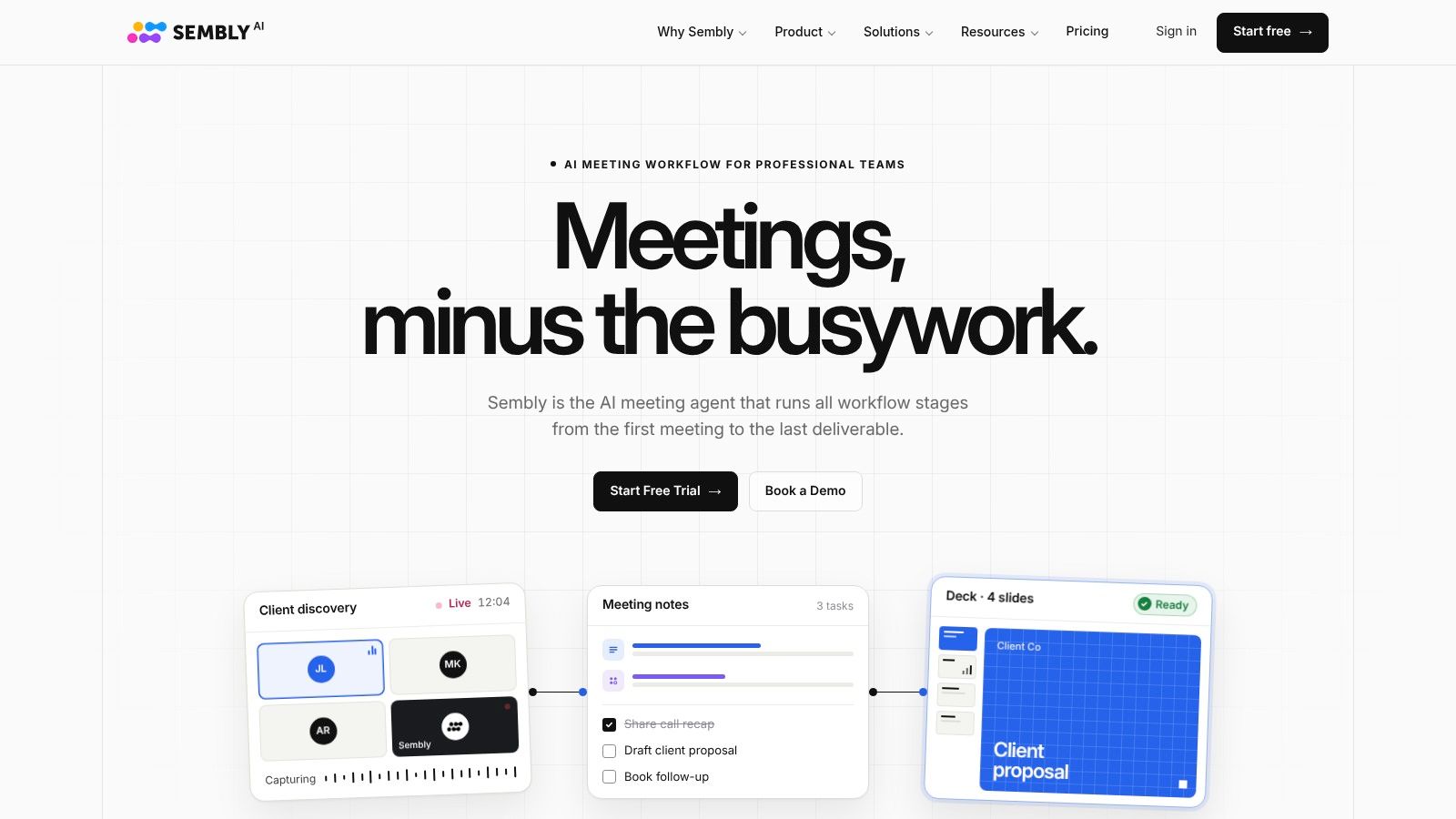
If your practice sessions finish with scattered notes and no clear follow-up, Sembly AI offers a more structured meeting workflow. It captures supported Zoom, Microsoft Teams, Google Meet, and Webex meetings, then creates transcripts, summaries, tasks, and searchable notes.
Its strongest interview use is turning a practice discussion into an action plan. Multilingual transcription on paid plans may also suit candidates rehearsing in different languages, provided the relevant language and plan are confirmed.
Keep preparation tasks separate from answer quality
Say a practice partner tells you to explain your experiment design more clearly and stop skipping assumptions. A task-oriented workflow can help you preserve those instructions and revisit them before the next session.
It won't establish whether the experiment design itself was sound. Review the transcript against your target role's expectations rather than accepting generated notes as an assessment of competence.
- Useful output: A searchable record plus specific follow-up work from a coaching or mock-interview session.
- Trade-off: Some advanced features are designed for teams rather than individual candidates.
- Trial limitation: The trial has a limited meeting allowance, so prepare a representative test before starting it.
I'd consider Sembly when structured follow-up matters as much as the transcript. If all you need is readable speech during an employer-hosted call, built-in captions may be simpler and avoid introducing a separate meeting-capture service.
Before subscribing, verify both transcript access and the credits or allowances attached to the features you'll use.
7. Zoom live transcription
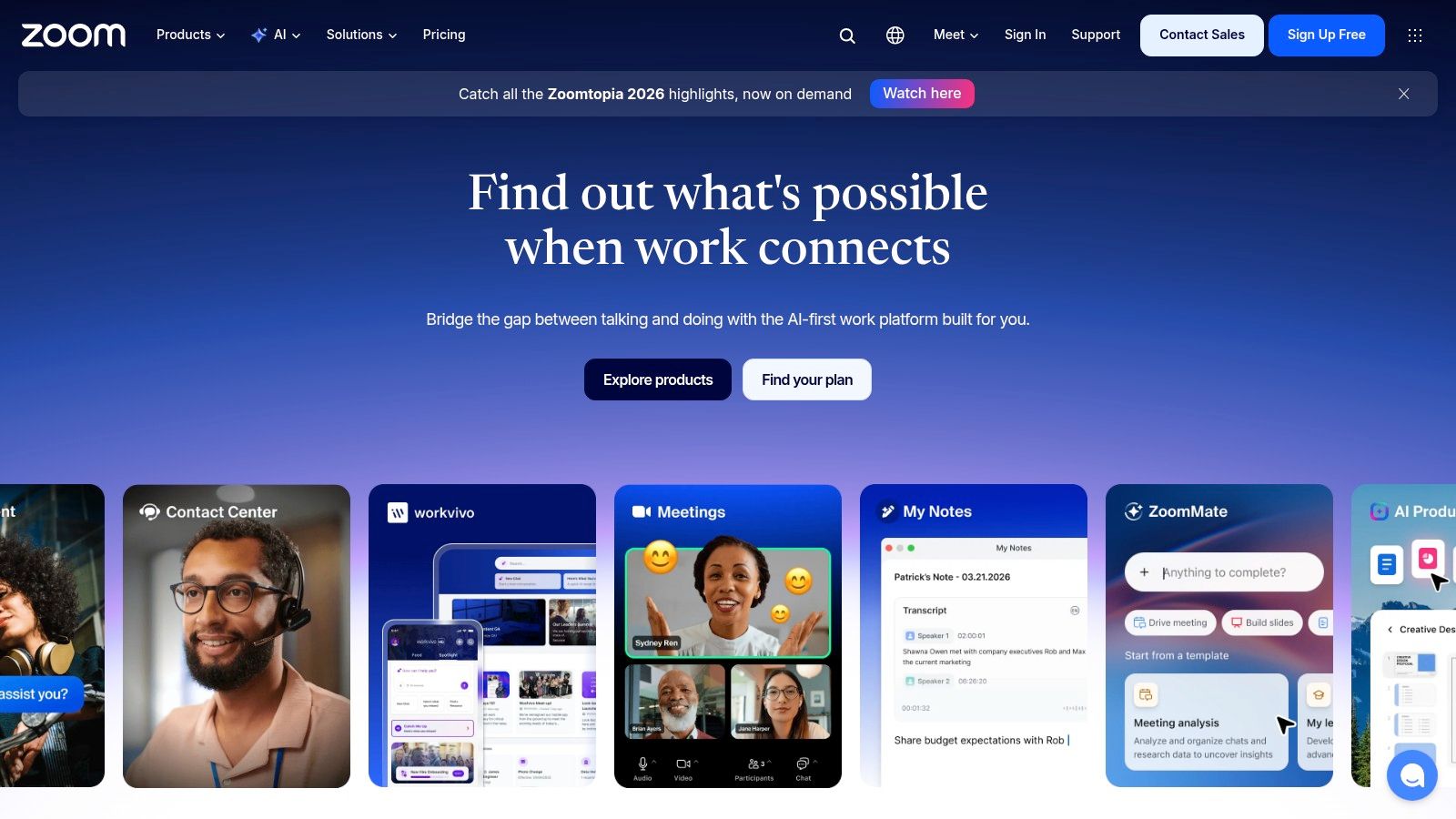
For an interview already happening in Zoom, built-in captions are often the simplest starting point. They display speech within the meeting without requiring a separate transcription service.
The important limitation is ownership of the meeting. Host and account settings can affect availability, and seeing captions doesn't establish that you'll receive a saved transcript afterward.
Separate comprehension from record-keeping
Use live captions to help follow a question, especially when the speaker's audio is difficult to understand. If you also need an afterward record, confirm the supported saving or cloud-recording transcription workflow before the call.
Caption quality includes delay as well as word recognition. A Coval real-time speech benchmark reports 2.0% word error rate and 99 ms time to final segment for a leading streaming system, but that isn't a Zoom performance guarantee.
For your own test, watch whether text arrives soon enough to help you follow the conversation and whether provisional wording changes meaning as it settles.
- Best scenario: A Zoom interview where you primarily need help reading the ongoing discussion.
- Main constraint: You may not control caption settings or transcript retention.
- Preparation fallback: Use an agreed mock interview to create your own review record rather than assuming the employer will share theirs.
If a word looks wrong, ask for clarification. Don't let a plausible-looking caption determine your answer to a question about a constraint, deadline, or technical requirement.
8. Microsoft Teams live transcription
A panel interview creates a different review problem: you need to know who asked what. Microsoft Teams offers live captions and meeting transcription, with speaker attribution available in live transcripts.
That can make a saved transcript more useful than an undifferentiated block of text. You can distinguish the hiring manager's behavioral question from the engineer's follow-up, provided attribution is correct and you have access to the record.
Native transcription avoids adding another service, but it doesn't give a candidate control over the organizer's meeting policies.
Organizer settings matter
Teams transcription availability, language options, viewing, and downloading depend on the supported setup and organization policies. A successful test in your own account doesn't prove the same controls will be available in an employer's meeting.
For interview-day setup, the guide to Teams live captions for interviews can help you distinguish captions from the broader transcription workflow.
- Choose captions for: Following the discussion while staying inside Teams.
- Choose an approved saved transcript for: Reviewing questions, speaker turns, and your responses afterward.
- Don't expect: A standalone recorder for arbitrary in-person conversations or guaranteed candidate download access.
For panel practice, ask participants to interrupt and hand questions between speakers. Then inspect attribution and overlapping passages rather than judging the transcript only from clean, uninterrupted answers.
I'd start with native Teams features for an employer-hosted Teams interview and add another tool only when there's a clear, permitted need they don't meet.
9. Google Meet live captions and transcripts
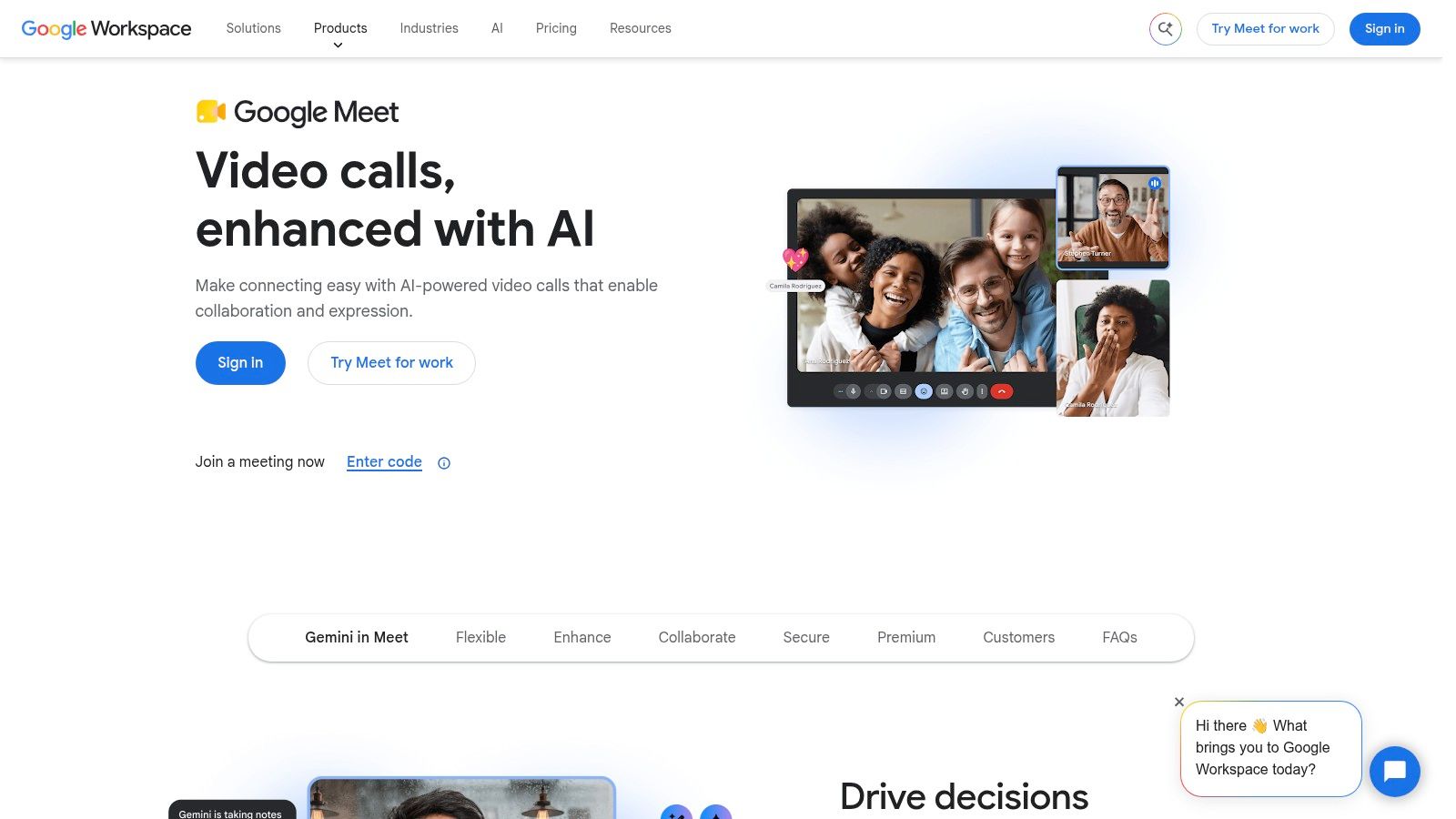
Google Meet offers a straightforward way to read speech during a call: turn on its live captions. Saving that discussion is a separate capability, with meeting transcripts and recording options dependent on eligible Google Workspace editions and settings.
This makes Meet a sensible choice for immediate comprehension, but not an automatic solution for building an interview-preparation archive. Don't finish a useful mock interview and assume its captions will be waiting in your account.
Decide what you need before joining
If your main goal is following a fast-moving question, native captions may be enough. If you need to revisit your answer, establish the supported transcript workflow or use an agreed capture tool before practice begins.
The distinction is covered in more detail in this guide to Google Meet live captions.
- Native advantage: You can read speech without installing a separate meeting assistant.
- Review limitation: A saved transcript isn't guaranteed on every account.
- Account dependency: Advanced transcript and AI features depend on the Workspace edition.
During practice, place captions where you can glance at them without continuously looking away from the interviewer. Check whether reading helps you understand the question or distracts you from listening to its intent.
For a case interview, pay particular attention to qualifications and assumptions. If the caption appears to omit a condition, repeat your understanding aloud and ask the interviewer to confirm before proceeding.
10. Google Live Transcribe
When the speech is happening around your phone, Google Live Transcribe fits the audio route directly. Available through Google's Android accessibility tools, it converts nearby speech into on-screen text using the phone's microphone.
That makes it useful for in-person interview practice and conversational accessibility. It's less direct for online interviews because it doesn't automatically receive the audio playing inside your computer or headphones.
The microphone must hear the interviewer
Placing a phone beside laptop speakers may capture remote speech, but room noise, speaker volume, and positioning can reduce quality. If you switch to headphones, the phone may continue hearing you while losing the interviewer entirely.
Offline transcription is available for selected languages and supported devices. Confirm that your particular device and language combination works before relying on it without connectivity.
- Strong fit: An in-person mock interview where the phone can clearly hear both speakers.
- Weak fit: A headset-based online interview with no audible remote speech in the room.
- Review limitation: It isn't designed as a searchable interview-recording workflow.
I'd choose it for immediate reading of nearby conversation, not as the foundation of a preparation archive. If afterward analysis matters, arrange a permitted recording or another supported review method separately.
Test placement with your practice partner speaking at their normal volume. Moving the phone closer is more useful than assuming a different app can recover speech the microphone never captured clearly.
Live transcription apps compared by free options, platform coverage, best use, and main limitation
| Item | Free Option | Platform Coverage | Best For | Main Limitation |
|---|---|---|---|---|
| Otter.ai | Basic plan available | Zoom, Teams, Google Meet, iOS, Android | Capturing and reviewing online or in-person practice | Free and paid plans limit usage; integrations and host settings may matter |
| Notta | Free tier available | Web, mobile, desktop, Chrome; Zoom, Meet, Teams, Webex | Multi-device and multilingual transcription needs | Free conversations are capped at three minutes |
| Fireflies.ai | Free tier available | Zoom, Meet, Teams, other meeting services; mobile, desktop, Chrome | Organizing recurring mock interviews | Meeting bot may be conspicuous; check free-plan storage and AI credits |
| Tactiq | Free plan available | Google Meet via desktop browser extension | Lightweight meeting transcripts without a bot | Requires a compatible browser and is limited to 10 transcripts monthly |
| Fathom | Free individual plan with unlimited recordings and transcription | Zoom, Meet, Teams; desktop and Chrome extension | Reviewing practice calls and summaries | Real-time features vary; older bot workflow transcribes after the call |
| Sembly AI | Limited free trial | Zoom, Teams, Meet, Webex | Multilingual practice with structured notes and tasks | Trial is limited to one meeting hour |
| Zoom live transcription | Live captions announced for free Zoom Meetings accounts | Zoom meetings | Interviews hosted on Zoom | Host or account settings affect availability and transcript saving |
| Microsoft Teams live transcription | No separate app needed; availability depends on account settings | Teams meetings | Interviews hosted in Teams | Organizer policies and account settings may restrict features |
| Google Meet live captions and transcripts | Live captions built in; transcripts depend on eligible editions | Google Meet; Android and iOS | Following speech and keeping records in Meet | Saved transcripts and advanced features depend on Workspace edition |
| Google Live Transcribe | Free | Android phones and supported devices | Live transcription of in-person speech | Not a desktop meeting solution or searchable interview-recording workflow |
Choosing the Right Setup for Your Next Interview
Start with the platform your interview uses. For Zoom, Teams, or Google Meet, built-in captions may be enough if your priority is following the question. A third-party app earns its place when you need an approved saved transcript, searchable history, playback, or a structured practice archive.
Choose according to the audio source, not the longest feature list. Otter and Notta suit mixed-device practice, Fireflies and Sembly emphasize organized meeting records, Tactiq fits browser-based capture, and Fathom deserves consideration when afterward review matters more than guaranteed verbatim live text. Google Live Transcribe serves a different need: speech happening within reach of an Android phone.
Run a realistic practice call
Use your interview headset and ask a partner to join remotely. Include interruptions, unfamiliar names, technical vocabulary, and a question with an important negative condition, then inspect the saved output afterward.
- Confirm capture: Both voices must appear, not just yours.
- Confirm review: Locate, search, export, or replay the material you need.
- Confirm limits: Check session allowances, language settings, and the features attached to your account.
- Confirm permission: Establish whether captions, recording, transcription, and live assistance are allowed.
Privacy needs the same practical scrutiny. An interview privacy study describes participant concerns about unclear recording storage, access, and retention, which are separate questions from whether a service encrypts data. Ask what happens to raw audio, transcripts, temporary buffers, uploaded documents, and generated prompts.
For context on recording-policy questions, the guide to call recording compliance for brokers is useful background, not a substitute for checking the requirements of your interview and location.
Distinguish recordings from account history
At Interview Pilot, our Copilot interview recordings stay only on the iPhone or Android phone that made them when audio recording is enabled. They aren't uploaded to your account or available on other devices, and our Mac and Windows apps don't record interview audio.
Our web practice recordings work differently: they're saved with the practice session in your account and can also be played in the desktop apps. That distinction matters when deciding where you'll rehearse and where you expect to review audio.
The right setup is the simplest permitted one that captures the necessary speech and preserves the material you need. Make that choice during practice, not while the interviewer is asking the opening question.
Interview Pilot offers guided mock interviews, a searchable question bank, and live Copilot assistance for online interviews where that support is permitted. Visit Interview Pilot to rehearse your target role's questions and build a review workflow before your next interview.


Topics
live transcription app
interview transcription
meeting transcription
live captions
transcription tools
Continue reading
AI Tools
10 Best AI Meeting Assistant Tools for 2026
Compare 10 leading AI meeting assistant tools for 2026 — features, platforms, limitations, and which tool fits interviews, teams, and sales calls.
November 15, 2026
16 min read
AI Tools
AI Interview Cheating: What Counts and How to Stay Honest
Learn what counts as AI interview cheating, why detection falls short, and how to use AI for interview prep without crossing the line.
November 16, 2026
16 min read
AI Tools
AI Interview Coach: How It Works and How to Choose One
Learn what an AI interview coach does, which features matter, where it falls short, and how to use one ethically before your next job interview.
November 11, 2026
17 min read